
Convert any web page to PDF, Markdown, EPUB or image
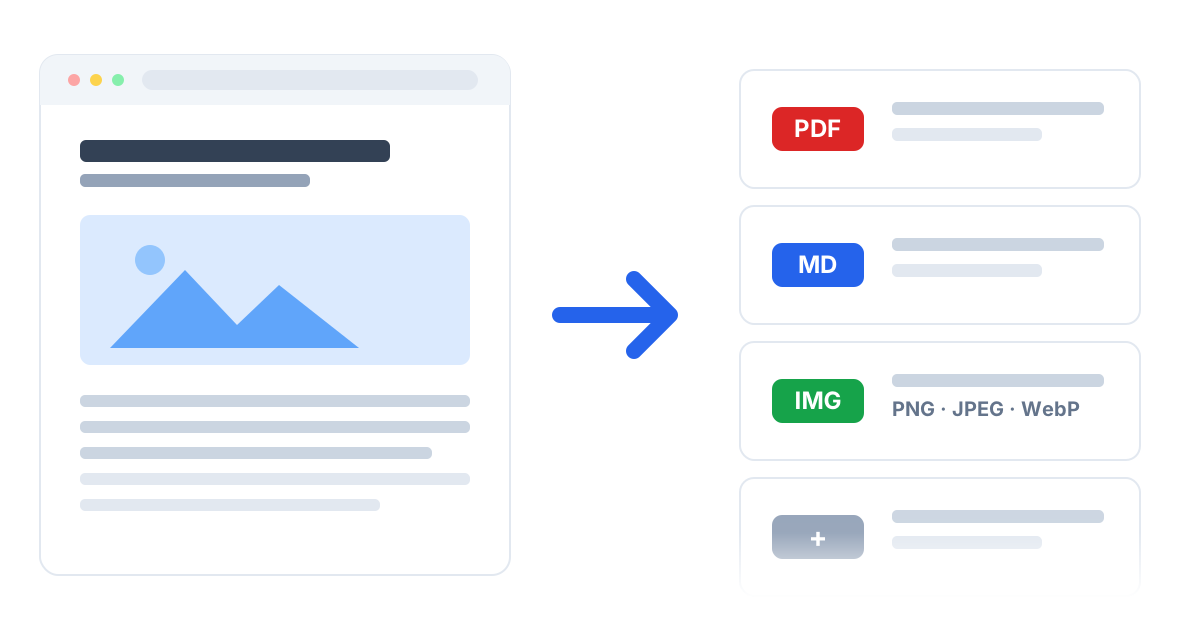
Web to File converts readable web content into files, without ads, sidebars, or page clutter. Export as PDF, Markdown, image, or EPUB, then keep it, send it to your Kindle in one click, or save it to your own Google Drive. Free, no account, no tracking.
Features
Three export modes. Six file formats.
Choose how much of the page to keep, then convert it to the format you need.
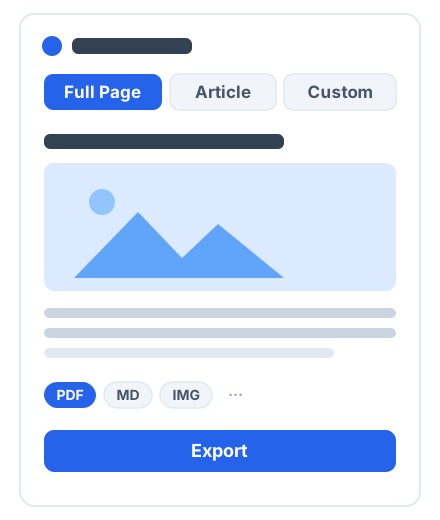
Full Page mode
Captures the page as it is rendered, from top to bottom. Useful for dashboards, documentation, and pages where layout matters.
Article mode
Extracts the readable article (title, text, and images) and leaves out ads, navigation, and sidebars. Suited to news articles and blog posts.
Custom mode
Select the content blocks you want, reorder and refine them, and export your own version of the page.
PDF, Markdown, EPUB & image export
Convert to PDF for reading and sharing, Markdown for notes and archives, EPUB for e-readers, or a full-length PNG, JPEG, or WebP screenshot. PDFs come in pages or as one long page with no page breaks, with an optional header and footer. Need it on paper? Print the clean version, without the ads.
AI conversations
Convert a ChatGPT thread into a document, each turn in order with its speaker. Your own conversations and shared links both work, and long threads convert in full.
Chinese, Japanese & Korean pages
CJK pages export complete, and the text in the PDF stays selectable and searchable rather than coming out as gaps.
Send to Kindle
Send any page to your Kindle as a clean EPUB with images and chapters. One minute of setup, then one click from any page.
Private by design
Pages are converted on your device. A file sent to Kindle passes through our mail server and is deleted once it is sent. Web to File never reads your other files, and there are no analytics and no tracking.
Google Drive & export history
Send any export to a "Web to File" folder in your own Google Drive. Web to File can see only the files it creates there, never the rest of your Drive. Every export, downloaded or sent, stays in a local history with a built-in viewer.
Send to Kindle
Read the web on your Kindle
Found a long read? Send it to your Kindle and finish it on a screen made for reading.
Click Send next to Download and the page is on its way. Articles, documentation, and whole ChatGPT threads all work.
Ads and sidebars stay behind. Images and chapters come along, and the text reflows to your font size.
Amazon only accepts documents by email, so the file is mailed through our server and deleted the moment it is sent.
From page to file in three steps.
Step 1: Install
Add Web to File to Chrome from the Chrome Web Store. There is nothing to sign up for or configure.
Step 2: Pick a mode
Open the side panel on the page you want to convert and choose Full Page, Article, or Custom. Preview and adjust the content before exporting.
Step 3: Export
Choose PDF, Markdown, EPUB, or an image format. The file is generated locally and saved to your Downloads folder, or sent to your Kindle or Google Drive if you choose.
Done!
Guides
Common tasks, step by step
Short walkthroughs, from choosing the right mode to handling a page that will not extract cleanly.
Send a page to your Kindle
Turn any article or ChatGPT thread into a clean EPUB and deliver it to your Kindle library in one click.
Read the guide →Convert a page to Markdown
Turn an article into a clean .md file that drops straight into Obsidian, Notion, or Logseq.
Read the guide →Convert a ChatGPT thread to PDF
Export a whole thread, every turn in order with code blocks intact, instead of copying and pasting.
Read the guide →Convert a ChatGPT thread to EPUB
Get an EPUB that reflows on a Kindle, a Kobo, or a phone, with no trip through Calibre.
Read the guide →Print a page without ads
Print just the article, recipe, or ChatGPT thread, without the ads, menus, and cookie notices.
Read the guide →Convert a page to PDF without ads
Get a readable PDF of the article instead of a print-to-PDF copy full of banners and sidebars.
Read the guide →Use cases
What people convert pages for
A few of the ways Web to File fits into everyday work.
Send long articles to your Kindle, or convert them into clean PDFs or EPUBs to read later on a flight or a tablet.
Export pages as Markdown that drops straight into Obsidian, Notion, or any notes app, with the source URL attached. It’s also a tidy way to hand a page to ChatGPT or Claude.
Keep a permanent local copy of pages that may change or disappear, in a format you control.
FAQ
Frequently Asked Questions
Short answers about privacy, formats, and permissions. There is more detail on the FAQ page.
Is my page content uploaded anywhere?
Only where you send it. Extraction, conversion, and file generation all happen locally in your browser. If you send a file to your Kindle, it passes through our mail server and is deleted once it is sent. If you save it to Google Drive, it goes straight from your browser to Google. Nothing else is uploaded.
How does Send to Kindle work?
Approve our sending address on Amazon, enter your Kindle address, and type the code that appears on your Kindle. After that, the Send button delivers any page as an EPUB in one click. The Kindle guide walks through the setup.
Which file formats are supported?
PDF and Markdown for documents, full-length PNG, JPEG, and WebP screenshots, and EPUB for e-readers. EPUB files embed their images, so they stay readable offline on a Kindle or any e-reader.
Can I save a ChatGPT conversation?
Yes, in any of the four formats. Open the side panel on a conversation and the whole thread is exported, each turn in order with its speaker. Your own conversations and shared links both work. Reasoning steps and tool output are left out.
Is it free?
Yes. Web to File is free to install and use, with no account and no in-app purchases.
Why does it need the permissions it asks for?
Each one maps to something you can see: reading the page you asked to export, and using Chrome’s own renderer to produce the PDF or image. Web to File acts on a page only when you start an export, never in the background.
Which permissions does it deliberately not request?
Web to File does not request access to your downloads or your browsing history. Files are saved with a standard browser download, which needs no permission at all, and EPUB files for your Kindle or e-reader are built on your device. Signing in to Google is needed only if you connect Google Drive, and even then Web to File can see only the files it creates there.
Get Web to File for Chrome
Free on the Chrome Web Store. It works on articles, documentation, dashboards, any page you can open in your browser.